Stop Hunching Over Your Laptop: The Ultimate Ergonomic Setup Guide
You do not need an expensive multi-monitor desk setup to enjoy a fast, organized computing experience. Adding simple essentials like a multi-port adapter, a fast external solid-state drive, and a padded travel sleeve protects your hardware from daily wear while speeding up your tasks. Follow this straightforward breakdown to choose the right gear for your needs without overspending on unnecessary gimmicks.
Section 1: The Hidden Struggle of Working on a Naked Laptop
When I first started working on my laptop for eight hours every day, I ignored my growing neck stiffness and assumed a sore upper back was just a normal part of working. My workspace was an absolute nightmare of tangled charging cords, and I nearly cracked my screen when my backpack slipped from my hands onto a concrete floor. I spent weeks feeling completely drained by mid-afternoon, fighting severe tension headaches and rubbing my aching wrists after long typing sessions.
That frustrating season made me realize that a laptop alone is never enough without the right accessories to protect your physical health and your expensive equipment. I decided to stop suffering through bad ergonomics and invested in a simple aluminum stand, a basic external mouse, and a reliable USB hub. That small shift completely transformed my daily comfort, eliminated my chronic neck strain, and gave me back my focus and energy.
Picture yourself hunching over your desk late at night, trying to finish an urgent work report or a challenging study assignment. Your neck aches from constantly looking down, your eyes feel tired, and your wrists throb against the sharp edge of the computer chassis.
To make matters worse, your cooling fans start screaming at full speed because your desk or bed blankets block the bottom air vents. You reach for a simple flash drive, only to discover your modern computer has no standard ports to plug it in.
This daily friction drains your energy and makes simple computing tasks feel exhausting. Buying a modern computer is a great first step, but working on a flat laptop without supporting accessories creates long-term posture problems and limits your speed.
The good news is that you do not need to spend thousands of dollars to build an effective workstation. Adding a few practical, budget-friendly tools can completely upgrade your daily productivity and protect your health.
Section 2: Transforming Your Laptop Setup into an Ergonomic Workspace
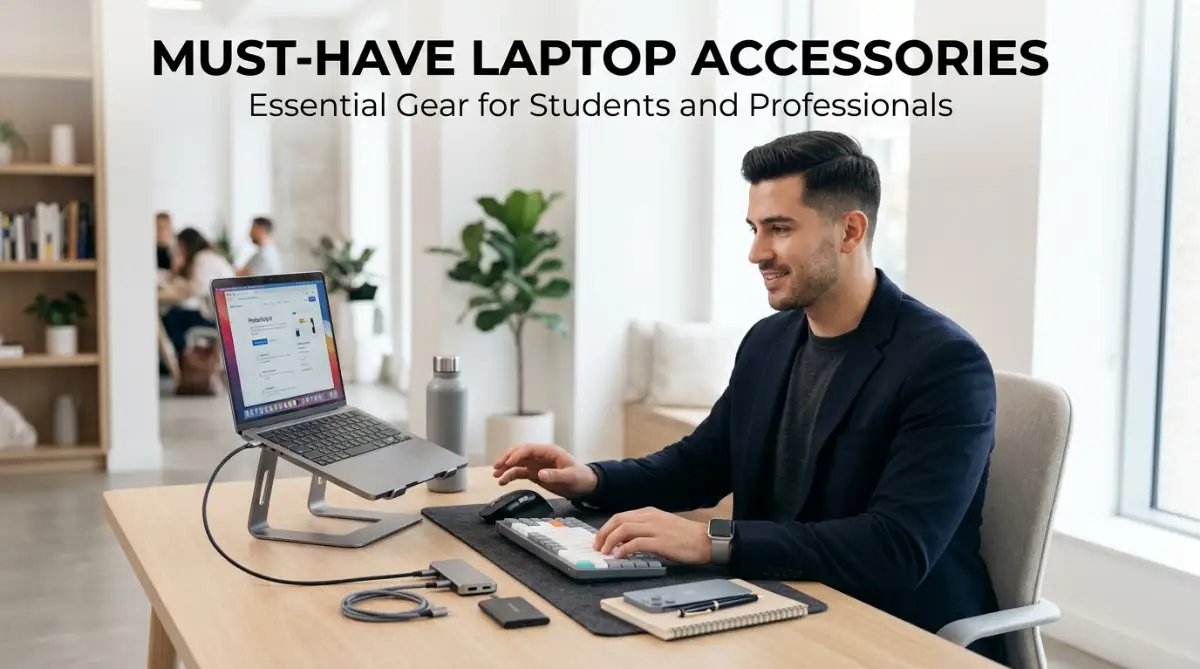
Building a comfortable workspace starts with addressing your screen height, typing angle, and device connectivity. You can easily turn any standard table into a high-performance workstation using a few key accessories.
Let us break down the most impactful gear upgrades that provide immediate physical relief and workflow improvements.
Workspace Myths vs Reality
- Myth: Built-in laptop keyboards and trackpads are designed for all-day continuous typing.
- Reality: Flat built-in keyboards force your wrists into unnatural angles, whereas a separate wireless keyboard lets your arms rest at a relaxed ninety-degree angle.
- Myth: Cloud storage accounts make physical external storage completely unnecessary.
- Reality: Cloud drives require strong internet and recurring subscriptions, while external solid-state drives offer instant offline backup speeds with zero monthly bills.
My Personal Pro Tip: Whenever I travel or set up in a coffee shop, I never rely on my laptop sitting flat on the table. I carry an ultra-light folding aluminum stand and a compact Bluetooth mouse in my bag, which instantly raises my screen to eye level and keeps my shoulders relaxed wherever I work.
Watch this video guide to discover practical laptop accessories and desk setup tips:
If you are setting up a home workspace to run an online project or build a digital portfolio, you can easily launch your site using easy AI website builders for small businesses without spending weeks on web design.
Section 3: Advanced Maintenance, Cable Safety, and Smart Gear Upgrades
Investing in quality computer accessories is a fantastic start, but maintaining your gear requires smart daily habits. Laptops produce substantial internal heat during video calls, photo editing, and heavy web browsing.
Placing your computer on soft blankets or cushions blocks the lower ventilation grilles completely. This blockage traps heat inside, forcing the fans to run loudly and wearing down your internal battery life.
Always keep your computer elevated on a sturdy stand or a smooth wooden desk to ensure fresh air circulates beneath the metal chassis. You should also use a can of compressed air every few months to blow dust out of the exhaust ports.
Pay close attention to physical stress on your computer ports as well. Modern USB-C ports are compact, and hanging heavy dongles or rigid cables directly from the side can loosen internal pins over time.
Use short, flexible extension cables or magnetic adapters that rest flat on your desk surface. This prevents sudden disconnections during large file transfers and protects your logic board from expensive repair bills.
Students looking to balance technology expenses while attending classes can explore the best community colleges in the USA for affordable education to maximize their academic budgets.
Smart professionals and students buy gear step by step rather than purchasing every trendy gadget at once. Start by securing an eye-level stand and an external mouse to protect your posture immediately.
As your budget expands, you can add high-speed external storage drives, noise-canceling headphones, and dedicated desk lighting. Planning your purchases prevents credit card debt and ensures every tool serves an authentic purpose.
If you are managing student expenses alongside your technology setup, compare options like federal vs private student loans to choose wisely and keep your personal finances completely organized.
Section 4: Common Mistakes and Pitfalls to Avoid
One major mistake is buying cheap, unbranded replacement chargers from discount websites. Knock-off charging bricks lack internal surge protection circuits and can deliver unstable electrical voltage to your machine.
Inconsistent voltage can permanently damage your charging controller or degrade your battery. Always choose power supplies from reputable brands that carry verified safety certifications.
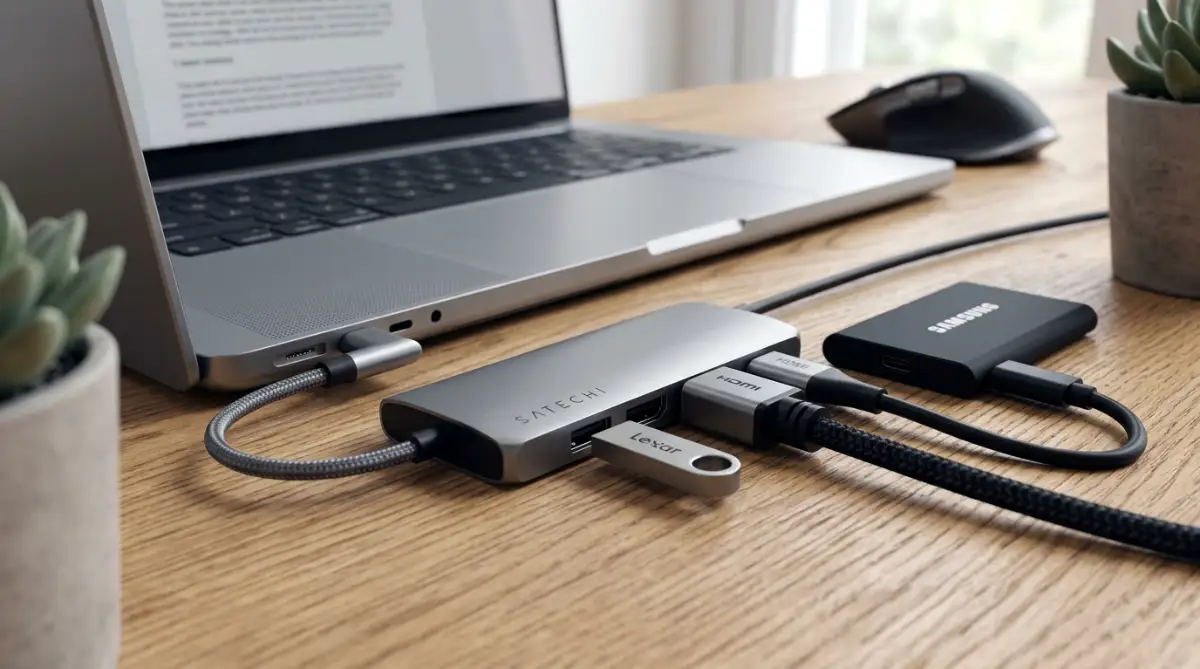
Another frequent error is overloading compact USB hubs with too many high-power devices at once. Connecting multiple external hard drives and webcams to a single unpowered adapter can cause sudden drive disconnects and corrupted files.
If you need to connect several power-heavy accessories, select a powered USB-C hub that plugs directly into a wall outlet. Dedicated power ensures every peripheral runs reliably without draining your system battery.
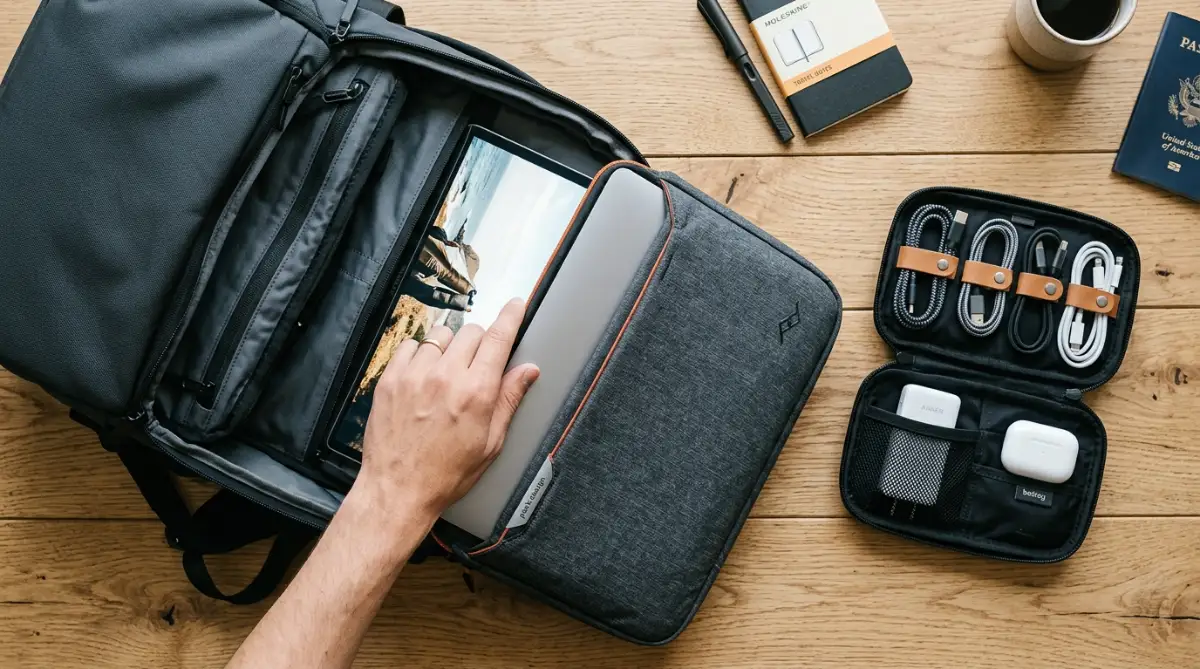
Never toss a naked laptop into a backpack crammed with heavy books, water bottles, and metal pens. Heavy items press hard against the lid, causing keyboard marks and hairline cracks across the delicate screen.
Always slide your device into a reinforced, padded sleeve before packing your bag for a commute. As you organize your equipment and home office, you can also review how to choose your first home insurance policy without stress to safeguard all your personal assets.
Section 5: Final Summary and Actionable Setup Checklist
Building an efficient laptop workspace does not require complicated gadgets or a massive budget. It is simply about lifting your screen to a healthy height, expanding your connectivity, and protecting your hardware from daily wear.
I know how much difference a comfortable workspace makes because upgrading my own desk setup gave me my energy and focus back. Taking small, intentional steps today will protect your neck, reduce mental clutter, and make working on your computer enjoyable again.
Your Actionable 5-Step Setup Checklist
- Step 1: Elevate Your Screen: Place your laptop on an adjustable stand so the top third of the display sits directly at eye level.
- Step 2: Connect External Controls: Use a dedicated wireless keyboard and ergonomic mouse to keep your wrists resting naturally.
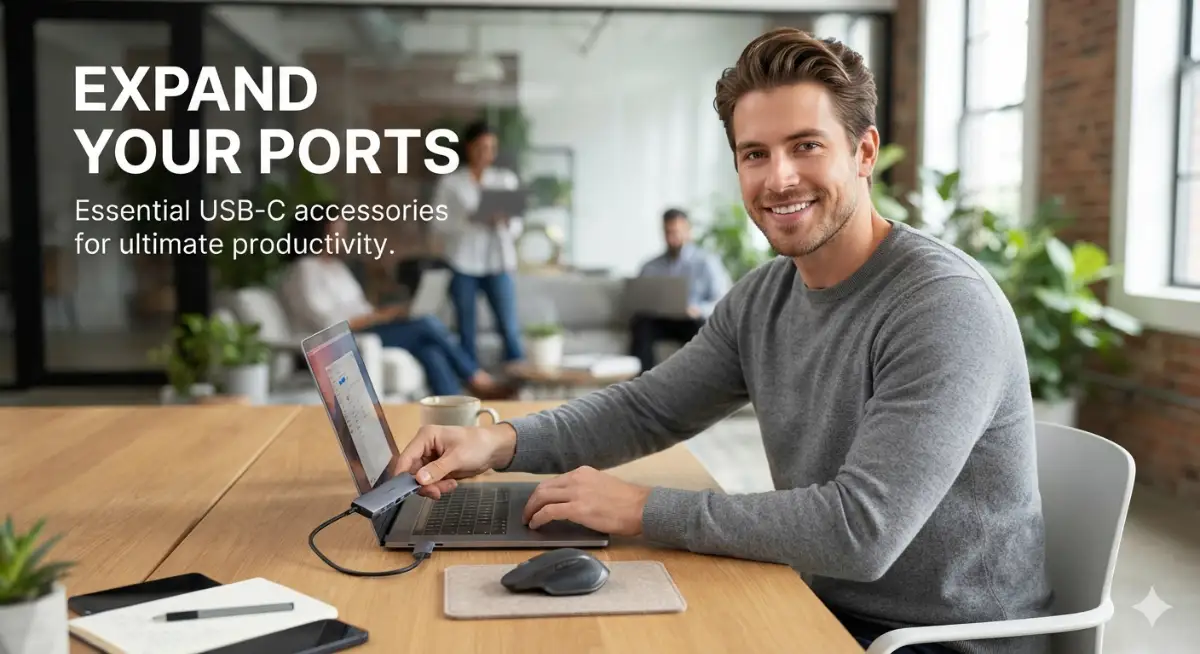
- Step 3: Add a Multi-Port Hub: Keep a compact USB-C hub in your bag to connect external displays, flash drives, and memory cards anywhere.
- Step 4: Secure Offline Backups: Plug in an external solid-state drive once a week to keep offline copies of your most valuable files.
- Step 5: Use a Padded Sleeve: Always store your computer in a water-resistant padded sleeve before placing it inside a travel bag.
Section 6: Internal Links Integration Check
- easy AI website builders for small businesses - Integrated naturally in Section 2 regarding workspace portfolio creation.
- best community colleges in the USA for affordable education - Integrated naturally in Section 3 regarding student budgeting.
- federal vs private student loans to choose wisely - Integrated naturally in Section 3 under financial planning.
- how to choose your first home insurance policy without stress - Integrated naturally in Section 4 regarding asset protection.
Section 7: Frequently Asked Questions
Is an adjustable laptop stand better than a fixed desk riser?
Yes, adjustable stands allow you to set the exact height needed to align your screen with your eye level. Fixed risers often sit too low or too high, which can still cause mild neck strain.
Will connecting an external display strain my laptop graphics processor?
Connecting a standard external monitor will not harm your graphics card as long as your laptop has adequate air circulation. Keeping the air vents clear prevents heat buildup during dual-screen multitasking.
What is the difference between an external SSD and a regular hard drive?
Solid-state drives use flash memory with no moving parts, making them up to five times faster and far more resistant to drop damage. Traditional hard drives are slower and more vulnerable to physical shocks.
Do I need a separate mouse if my laptop has a large trackpad?
Yes, using a separate ergonomic mouse keeps your forearm in a relaxed position and reduces wrist pressure. Built-in trackpads force your hands close together, which creates tension in your shoulders over time.
How do I prevent my laptop charger cable from fraying near the connector?
Avoid bending the cable at sharp angles when packing your bag, and use magnetic cable clips on your desk. Using right-angle adapters also prevents strain where the cord meets the laptop socket.
Section 8: Professional Disclaimer
Tech & Gadgets Disclaimer: The information provided in this guide is for educational and informational purposes only. Hardware recommendations, ergonomic tips, and technical advice reflect general consumer best practices and testing. Device specifications, charging standards, and hardware compatibility vary across manufacturers. Always verify your specific computer model guidelines and safety documentation before connecting third-party adapters or power supplies.